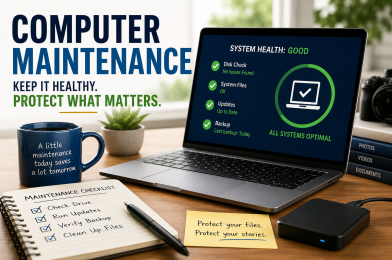
Yesterday I helped a client move files from a seven-year-old Windows laptop to a new Windows 11 computer.
I expected the process to be simple.
The old laptop only needed three folders transferred:
- Documents
- Music
- Pictures
The plan was straightforward: copy those folders to an external SSD and then move them to the new computer.
Unfortunately, nothing went according to plan.
As soon as I started copying files, I was greeted with error message after error message. Files wouldn’t transfer. The computer crawled. What should have been a quick job became an all-day project.
The first clue was how long it took just to restart the laptop. After closing everything and rebooting, I waited more than five minutes before the machine became usable again.
That’s when I realized this wasn’t simply a file transfer problem. The computer itself needed maintenance.
The Hidden Cost of Ignoring Maintenance
Many people assume computers slow down because they’re old.
Age certainly plays a role, but more often the real issue is years of accumulated errors, corrupted files, incomplete updates, neglected maintenance, and failing sectors on aging drives.
In this case, I started running diagnostic and repair tools.
Step 1: CHKDSK
CHKDSK scans your hard drive or SSD to verify its integrity.
- Fixes logical file system errors
- Corrects corruption caused by improper shutdowns
- Identifies bad sectors on hard drives
- Prevents Windows from writing data to damaged areas
Think of it as inspecting the road before repairing the vehicles driving on it.
Step 2: SFC /SCANNOW
After the drive itself is healthy, Windows can verify its own system files.
The System File Checker scans protected Windows files and replaces damaged versions with known-good copies.
I actually started with SFC before running CHKDSK. Because the computer was so slow, I researched the issue and learned the order should have been reversed.
Repair the drive first. Then repair Windows.
Sometimes the best lessons come from making the mistake yourself.
What should have taken less than an hour ultimately consumed nearly eight hours.
The files were successfully recovered and transferred, but much of the frustration could have been avoided through routine maintenance.
I’ve Seen This Before
During years of teaching photography and visual storytelling workshops, I regularly encountered students struggling with computers that seemed unusable.
Many assumed they needed a new machine.
Often, they simply needed maintenance.
On Windows computers, basic repair tools frequently restored performance.
On Macs, I often used Disk Utility and First Aid to repair file system issues and restore stability.
External Drives Need Maintenance Too
Recently, another client handed me a 1TB external hard drive that had been sitting on a shelf for more than five years.
The drive wouldn’t even appear properly on a Mac.
Disk Utility couldn’t recognize it correctly because of corruption issues.
To recover the files I used:
- Recovery Explorer Standard
- DiskWarrior
Recovery Explorer helped identify the drive structure and DiskWarrior helped rebuild directory information.
The files were recovered, but once again the problem was largely the result of years without maintenance and long periods of inactivity.
Just because a hard drive powers on doesn’t mean it’s healthy.
Every drive will eventually fail. The question is whether you discover the problem before or after you need the files.
The Real Problem
The challenge isn’t that maintenance is difficult.
The challenge is knowing what maintenance needs to be done.
Most people don’t realize there is a problem until the computer becomes painfully slow or a drive stops working.
Unfortunately, that’s often when recovery becomes expensive, stressful, and time-consuming.
A little preventative maintenance can save countless hours and protect irreplaceable photos, videos, documents, and business records.
Windows Maintenance Checklist
Monthly
- Restart your computer completely
- Run Windows Update
- Check available storage space
- Empty the Recycle Bin
- Review startup programs
Every 3–6 Months
- Run CHKDSK
- Run SFC /SCANNOW
- Verify backups are working
- Scan for malware
- Clean temporary files
Annually
- Test backup recovery
- Review external drives
- Replace aging HDDs
- Upgrade to SSD when possible
Mac Maintenance Checklist
Monthly
- Restart your Mac
- Install macOS updates
- Verify Time Machine backups
- Check available storage
Every 3–6 Months
- Run Disk Utility First Aid
- Review Login Items
- Remove unused applications
- Verify external drives are healthy
Annually
- Test Time Machine recovery
- Review aging drives
- Archive important projects
- Create redundant backups
One Rule Every Photographer Should Follow
As photographers, videographers, and storytellers, we often have years of work stored on computers and external drives.
Never assume a drive is healthy simply because it powers on.
Verify it.
Maintain it.
Back it up.
Test those backups.
The best time to discover a problem is before you need the files.
The eight hours I spent rescuing one laptop yesterday served as another reminder that routine maintenance isn’t just about keeping a computer fast.
It’s about protecting the stories, memories, and work that matter most.