|
Getting your Trinity Audio player ready...
|
For years I assumed my camera would be the gear that aged out first. New sensors, faster autofocus, better low-light performance — surely that’s where the pressure to upgrade would come from. It turns out I had it backward. My camera bodies have outlasted my computers, and the data backs up why.
Camera bodies are lasting longer, not shorter
Go back to the 2000s, and photographers were replacing bodies every year or two to keep pace. That era is over. Sensor image quality made huge leaps before around 2010, but gains have slowed dramatically since — a modern mirrorless body can realistically serve you for 5 to 10 years with proper care, and even average use puts most bodies in the 4-to-5-year range before anyone seriously considers replacing them. The camera in your bag right now is very likely still fully capable of producing the images you need.
Computers are on a different clock — and software is driving it
Computers haven’t gotten that same reprieve, and it’s not because the hardware wears out faster. It’s that the software running on top of it keeps demanding more:
- Baseline requirements keep climbing. A few years ago, 8GB of RAM ran Lightroom fine. Now 16GB is considered the bare minimum for smooth performance, and serious workstation builders recommend 32GB to 64GB if you’re working with large catalogs or pairing Lightroom with Photoshop.
- Vendors eventually stop supporting older machines. When a company ends support for an operating system or software version, your computer doesn’t have to fail for it to become obsolete — it just stops being able to run what you need.
- Feature bloat is real. Every redesign and every new feature adds overhead, whether or not you personally use it.
That’s the core of my hypothesis, and the research holds up: my camera lives on a hardware-limited replacement cycle that keeps stretching longer, while my computer lives on a software-limited cycle that keeps getting shorter.
The one thing changing that equation right now: AI
If there’s a single force accelerating computer upgrades for photographers and video editors today, it’s AI-powered editing tools — and this part isn’t hype; it’s measurable. Features like Lightroom’s AI Denoise, Photoshop’s Generative Fill and Neural Filters, and Camera Raw’s AI-based tools are GPU- and Neural Engine-bound. The difference between a modern chip and an aging one isn’t subtle — it can be the difference between a five-second AI edit and a forty-second one, image after image, all day long.
For working photographers, this matters in a very practical way: those tools now save real hours in an editing session. Batch-denoising a card full of high-ISO images that used to be unusable, or expanding a crop to fit a new deliverable format in seconds — that’s not a luxury feature anymore; it’s workflow. But it does mean the computer underneath you needs to keep up in a way it simply didn’t five years ago.
You don’t need to buy for the distant future.
Here’s the part I had wrong for a long time: I used to think the smart move was to max out a machine’s specs so it would last as long as possible. The research — and plenty of people who’ve tried it — says otherwise. By the time software genuinely demands more power than your current machine has, the hardware industry will have released a mid-range machine that meets that new demand for less money than it would have cost you to “future-proof” today. Paying a premium now for specs you don’t yet need is usually a bet you lose — you end up with an expensive, depreciating machine that a budget model quietly catches up to a few years later.
The better approach: buy what fits how you actually work right now, plan on replacing it on a predictable cycle, and let next generation’s mid-tier machine do the future-proofing for you.
What I actually bought, and why it fits
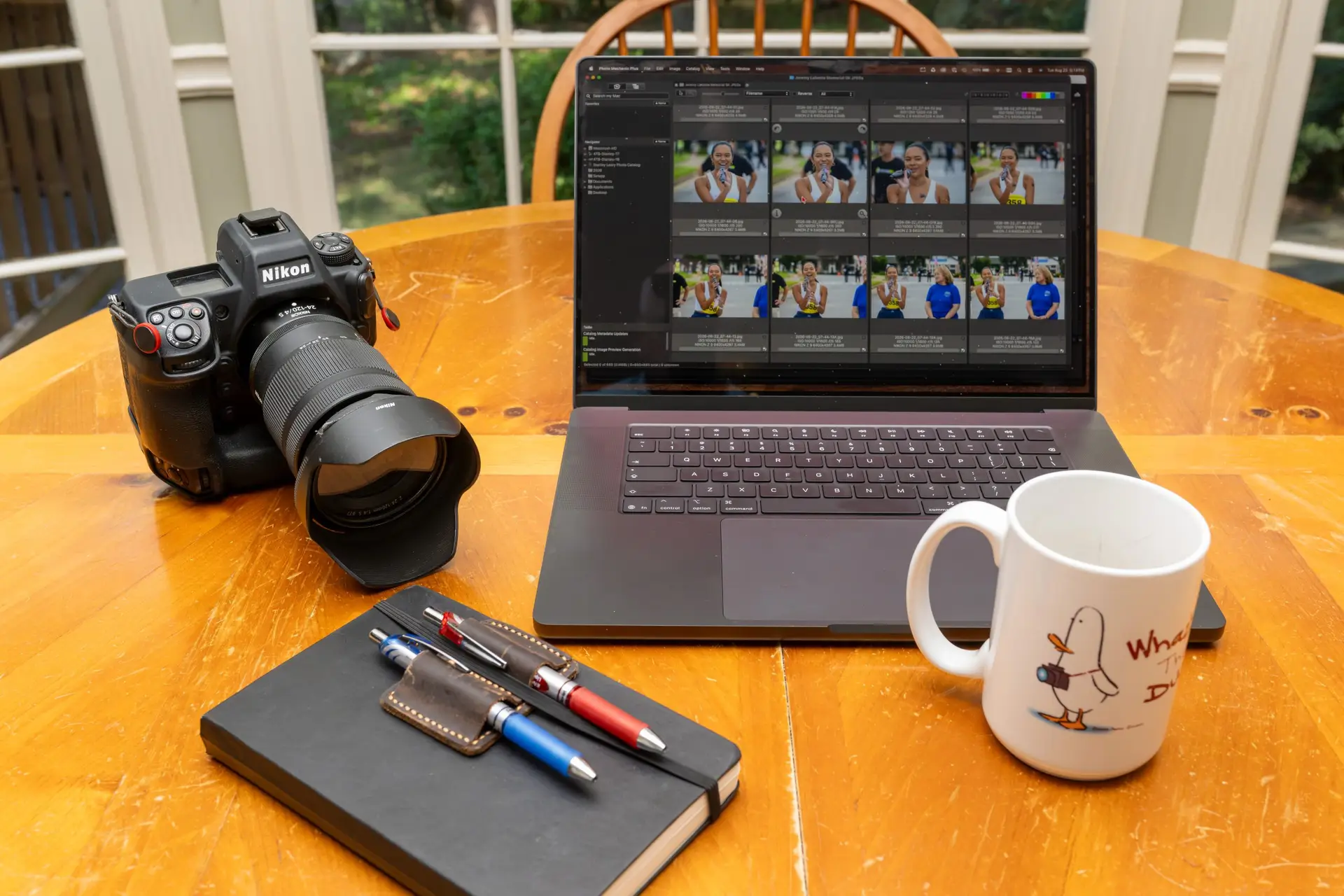
With all that in mind, I just upgraded to the 16″ MacBook Pro with the M5 Max chip, 48GB of unified memory, and 2TB of storage — and deliberately didn’t max it out further. Here’s why this configuration makes sense for a working photographer and video editor rather than a spec-chaser:
- M5 Max chip: This generation of Apple’s Max chip was built with AI workloads specifically in mind, with a substantially upgraded Neural Engine. That directly benefits the tools I use every day — AI Denoise, Generative Fill, Neural Filters — rather than sitting idle as marketing spec.
- 48GB of unified memory: This sits well above Lightroom’s stated minimum and comfortably covers large catalogs, high-resolution RAW files, and running Lightroom alongside Photoshop. It’s not the 64GB or 128GB ceiling some workstation builders reach for, but for photo work and typical video editing, it’s the sweet spot — enough headroom without paying for capacity I won’t touch.
- 2TB of storage: Enough for a healthy buffer of video projects, and the scratch space AI features need. I do use an external hard drive for all images.
This isn’t the maxed-out configuration Apple sells — that would be 128GB of memory and 8TB of storage, aimed at people doing sustained 8K video work or massive VFX pipelines. For a photographer who also edits video, this configuration hits the actual requirements of the work rather than a theoretical future one.
What to set aside each year so this doesn’t sting
A pro-level MacBook Pro configuration like this one runs somewhere in the $4,000–$4,500 range. If you plan to replace it roughly every 4 years—which lines up with how quickly software requirements have been climbing—that works out to about $1,000 a year, or roughly $85 a month, set aside specifically for your computer.
Compare that to your camera body: if you’re realistically getting 5-7 years out of a body in the $2,500–$3,500 range, that’s closer to $400–$500 a year set aside for camera gear.
Simple version if you want one number for your whole kit: put aside about $1,500 a year — roughly $125 a month — split between a computer fund and a camera/gear fund. Adjust the ratio based on what you update more often; for most photographers doing serious editing work, more of that should go to the computer than the camera.
Want help getting the most out of your new machine?
If you’ve made a similar jump — or you’re staring at your current setup wondering whether it’s finally time — I offer one-on-one coaching to help photographers get comfortable and efficient on a new MacBook Pro and inside Lightroom specifically: setting up your catalog the right way, understanding what settings actually take advantage of the hardware you paid for, and building an editing workflow that doesn’t waste the speed you just bought. Reach out if that’s something you could use.